
Canvas
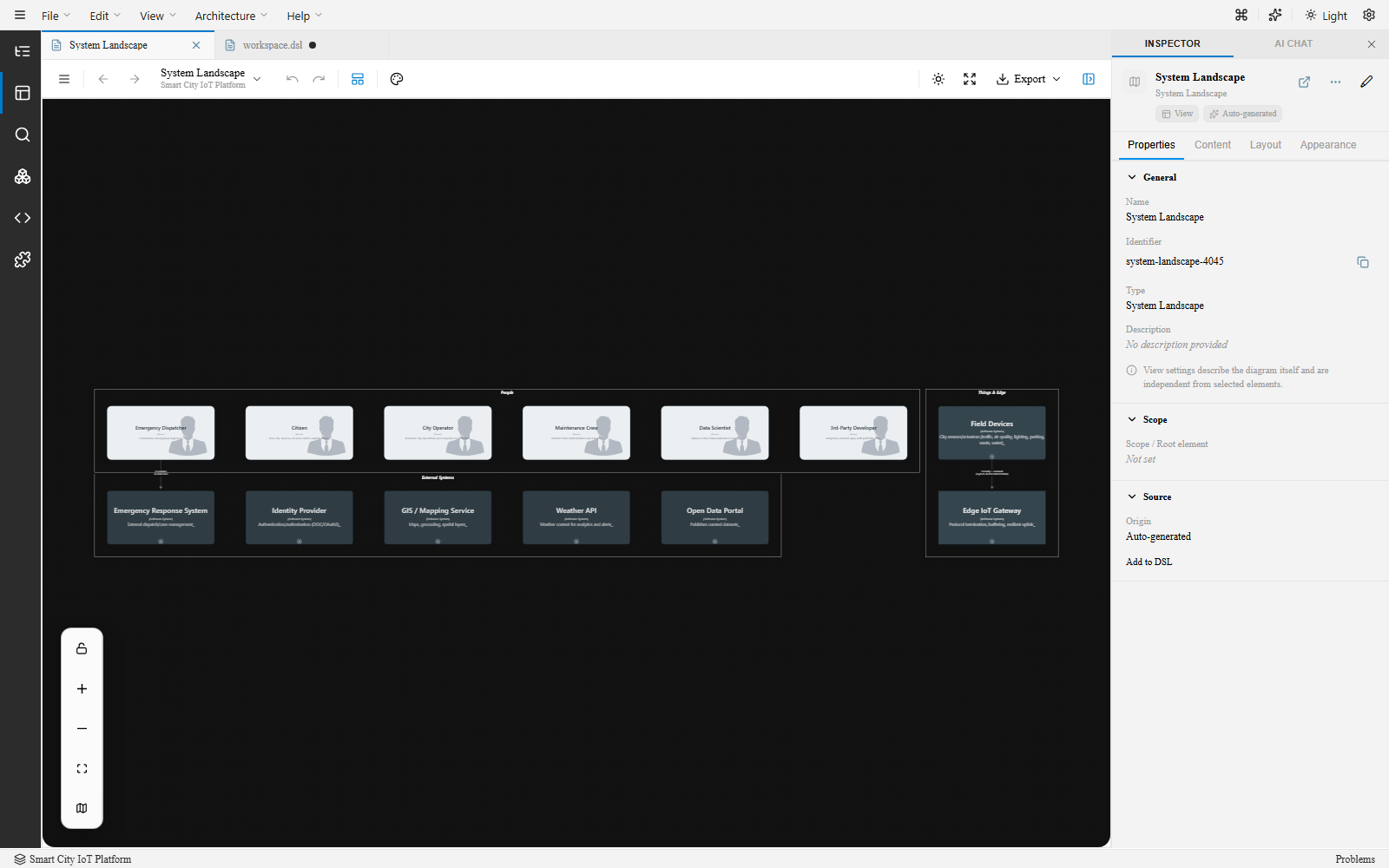
The canvas is the central diagram surface in ArchTect. It displays the currently active view and provides interactive editing capabilities.
Navigation
Section titled “Navigation”| Action | How |
|---|---|
| Pan | Hold Space and drag, or use the middle mouse button |
| Zoom in | Scroll wheel up, or Ctrl/Cmd + + |
| Zoom out | Scroll wheel down, or Ctrl/Cmd + - |
| Fit to view | Ctrl+0 or the toolbar Fit button |
| Zoom to 100% | Ctrl+1 |
Selection
Section titled “Selection”| Action | How |
|---|---|
| Select element | Click on a node or relationship |
| Multi-select | Shift+click additional elements |
| Select all | Ctrl+A |
| Deselect all | Press Esc or click empty space |
When an element is selected:
- Selection handles appear around the element.
- The Inspector opens on the right with the element’s properties.
- The element is highlighted on the canvas.
Editing on the canvas
Section titled “Editing on the canvas”Moving elements
Section titled “Moving elements”Drag elements to reposition them on the canvas:
- Click an element to select it.
- Drag to the desired position.
- Alignment guides appear when the element aligns with others.
- Release to drop.
You can also nudge selected elements with the arrow keys (hold Shift for larger increments).
Creating relationships
Section titled “Creating relationships”- Drag from one element to another to create a relationship.
- Edit the relationship’s properties in the Inspector.
Deleting elements
Section titled “Deleting elements”- Select an element or relationship and press
DeleteorBackspace. - Or right-click → Delete.
- Use
Ctrl+Zto undo within the current session.
Layout
Section titled “Layout”ArchTect supports multiple layout engines. The layout engine is set per view and saved in the DSL properties.
Auto layout
Section titled “Auto layout”The layout engine positions elements automatically. The layout is deterministic — the same model always produces the same diagram.
Available layout engines:
| Engine | Description |
|---|---|
| Default | Built-in default layout |
| Graphviz | Classic graph layout — good for dense, interconnected graphs |
| Dagre | Directed acyclic graph layout — good for tree-like structures |
| ELK | Eclipse Layout Kernel — hierarchical, layered layouts |
Auto-layout directions:
- Top to bottom (default)
- Left to right
- Bottom to top
- Right to left
Keyboard shortcuts
Section titled “Keyboard shortcuts”| Shortcut | Action |
|---|---|
Space + drag |
Pan |
Ctrl+0 |
Fit to view |
Ctrl+1 |
Zoom to 100% |
Ctrl+Z |
Undo |
Ctrl+Shift+Z / Ctrl+Y |
Redo |
Ctrl+C / Ctrl+X / Ctrl+V |
Copy / Cut / Paste |
Ctrl+D |
Duplicate |
Ctrl+A |
Select all |
Delete / Backspace |
Delete selected |
Esc |
Deselect all |
Shift+click |
Add to selection |
| Arrow keys | Nudge selected elements |
Shift + Arrow keys |
Nudge (large increment) |
Ctrl+G |
Group |
Ctrl+Shift+G |
Ungroup |
[ / ] |
Send back / Bring front |
Ctrl+[ / Ctrl+] |
Send to back / Bring to front |
See also
Section titled “See also”- Inspector — Editing properties for selected elements
- View Settings — Configuring layout options
- Canvas & DSL Editor (Portal Guide) — Step-by-step editing workflows