
Canvas & DSL Editor
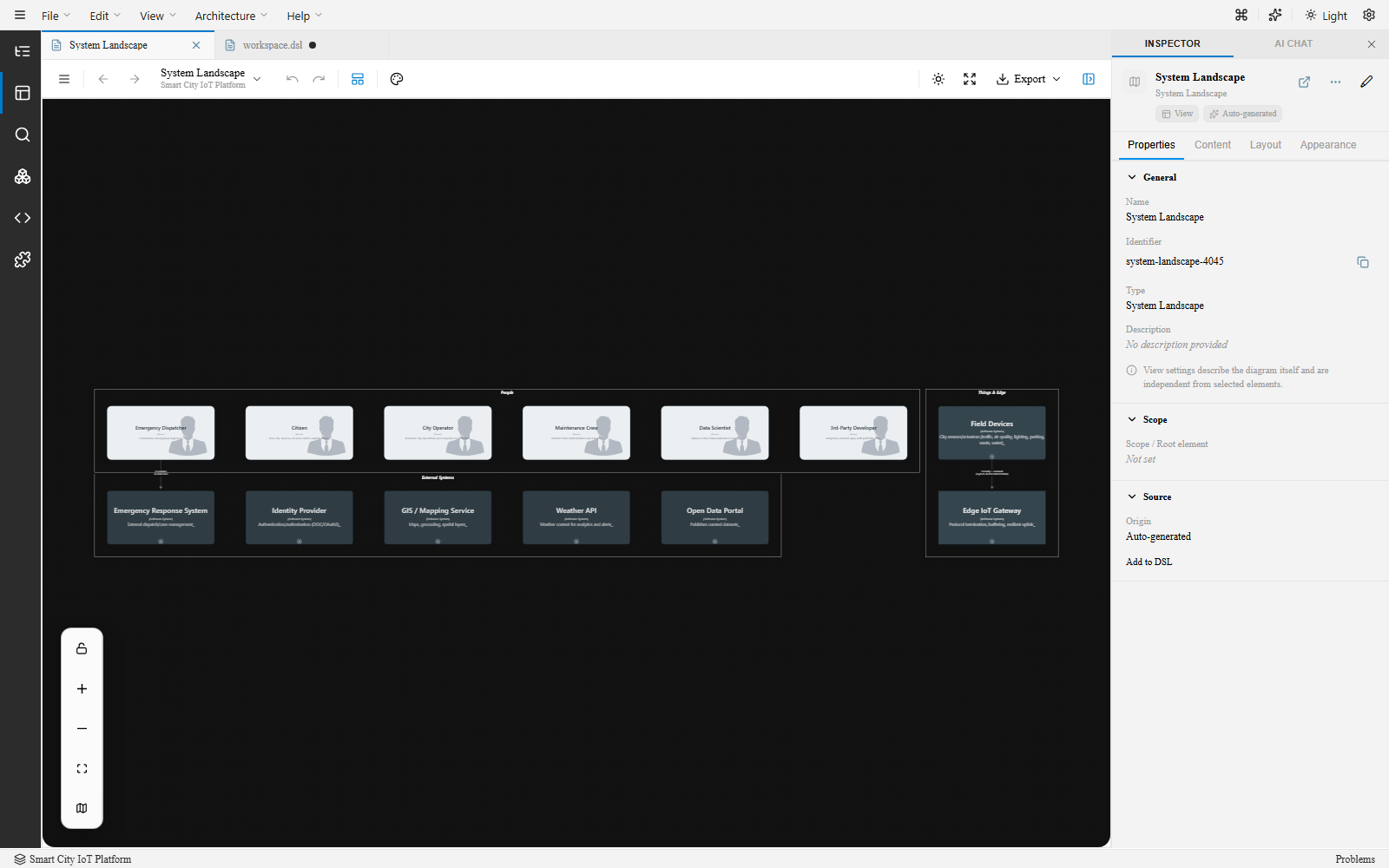
The canvas is the central diagram surface. Every view you open — whether authored in the DSL or auto-generated — opens as its own tab above the canvas.
Opening the DSL editor
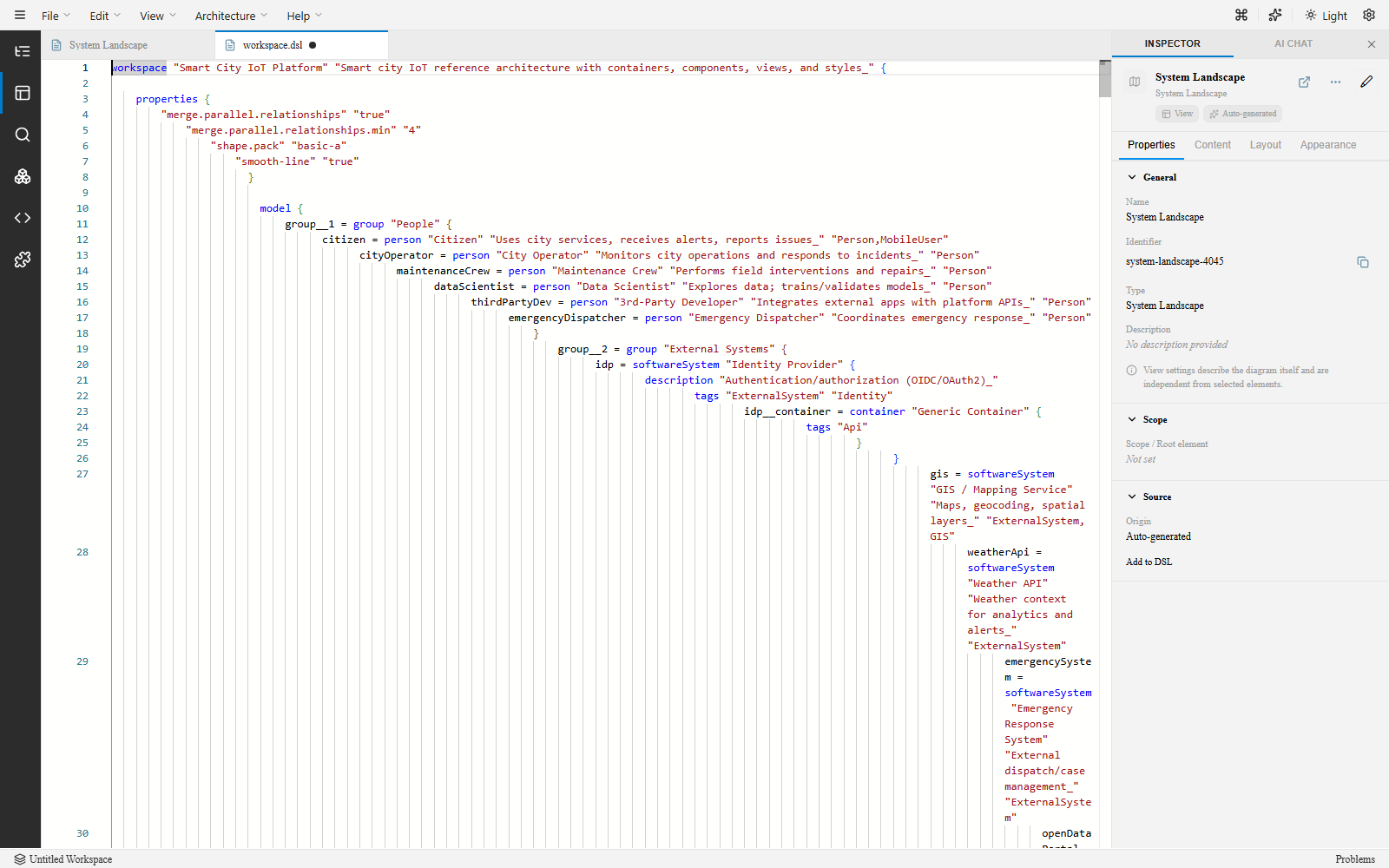
Section titled “Opening the DSL editor”Click the DSL icon in the left rail (or the “Open in DSL” toolbar button when available) to open a Monaco-based text editor as another tab, alongside your diagram tabs. It has the same syntax highlighting and autocomplete as VS Code.
Bidirectional sync
Section titled “Bidirectional sync”Edits in the DSL editor update the canvas, and canvas edits serialize back to the DSL — but the sync isn’t fully live as you type:
- Type or paste changes in the DSL editor.
- Press
Ctrl+Sto apply the changes. This is what actually parses the DSL and re-renders the canvas — typing alone does not trigger a re-render. - Canvas edits (dragging elements, editing Inspector fields) write back to the DSL automatically.
Navigation
Section titled “Navigation”| Action | How |
|---|---|
| Pan | Hold Space and drag, or use the middle mouse button |
| Zoom in / out | Scroll wheel, or Ctrl + / Ctrl - |
| Fit to view | Ctrl+0 or the toolbar Fit button |
| Zoom to 100% | Ctrl+1 |
Selection
Section titled “Selection”| Action | How |
|---|---|
| Select element | Click a node or relationship |
| Multi-select | Shift+click additional elements |
| Select all | Ctrl+A |
| Deselect all | Press Esc or click empty canvas space |
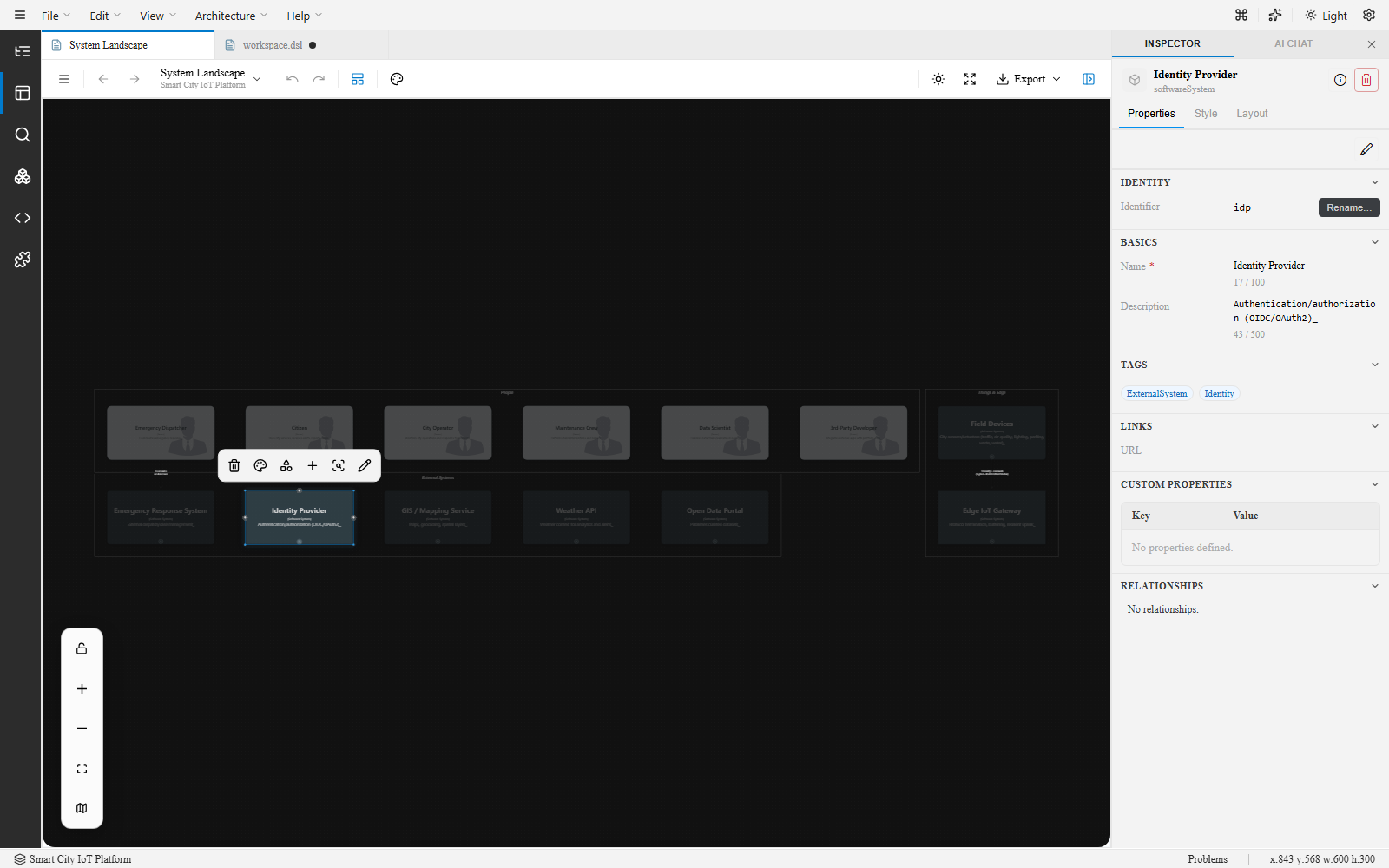
Selecting an element shows a floating action toolbar next to it (delete, style, relationships, more actions, rename) and opens its properties in the Inspector.
Editing on the canvas
Section titled “Editing on the canvas”Moving elements
Section titled “Moving elements”Drag elements to reposition them. Alignment guides appear when the element aligns with others. You can also nudge selected elements with the arrow keys (hold Shift for larger increments).
Creating relationships
Section titled “Creating relationships”Drag from one element to another to create a relationship, then edit its properties in the Inspector.
Deleting elements
Section titled “Deleting elements”Select an element or relationship and press Delete, or use the floating action toolbar’s delete icon. Ctrl+Z undoes within the current session.
Layout
Section titled “Layout”ArchTect supports multiple layout engines, set per view and saved in the DSL properties:
| Engine | Description |
|---|---|
| Default | Built-in default layout |
| Graphviz | Classic graph layout — good for dense, interconnected graphs |
| Dagre | Directed acyclic graph layout — good for tree-like structures |
| ELK | Eclipse Layout Kernel — hierarchical, layered layouts |
Auto-layout can run top-to-bottom, left-to-right, bottom-to-top, or right-to-left. Select the layout engine in the Inspector when the view itself is selected (click empty canvas space to deselect elements first).
See also
Section titled “See also”- Views Panel — Opening and creating views
- Inspector — Editing selected elements, relationships, and views
- Manual Layout — Deep dive into positioning and layout persistence
- Keyboard Shortcuts — Full shortcut reference