
Plugins
ArchTect has an internal plugin architecture that lets features register panels, inspectors, commands, and menu items without being built into the core editor. The Plugins panel (left rail, puzzle-piece icon) lists what’s installed and lets you activate or deactivate each one.
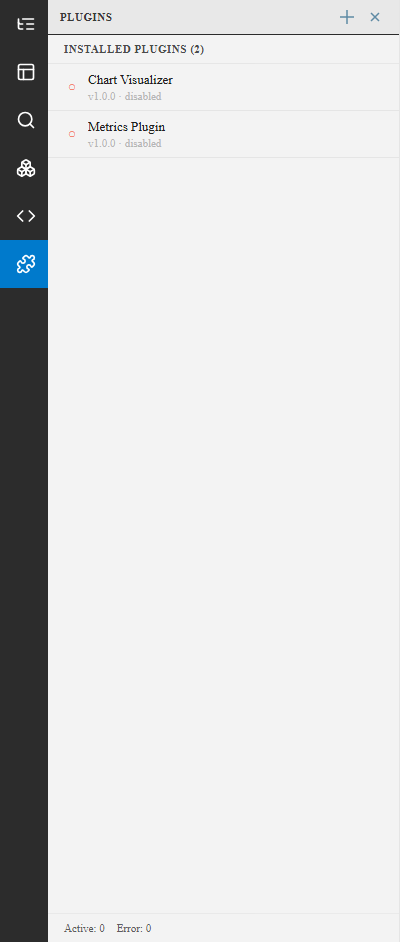
Plugin states
Section titled “Plugin states”| State | Meaning |
|---|---|
| Active | Loaded and running |
| Disabled | Installed but not activated |
| Loading / Activating | Transitioning between states |
| Error | Failed to activate — check the browser/webview console |
The panel footer shows an at-a-glance Active / Error count across all installed plugins.
Enabling a plugin
Section titled “Enabling a plugin”Click a plugin in the list to select it, then use the activate/deactivate control to toggle its state. Activation and deactivation both run without restarting ArchTect.
What plugins can do
Section titled “What plugins can do”A plugin can contribute:
- A panel shown in the left rail or elsewhere
- An inspector that renders for specific selection types
- Commands, optionally with a keybinding
- Menu items in existing menus
See Built-in Sample Plugins for two working examples shipped with ArchTect.