
Inspector
The Inspector is the right-side panel that shows and lets you edit properties for whatever is currently selected — an element, a relationship, or the view itself when nothing is selected.
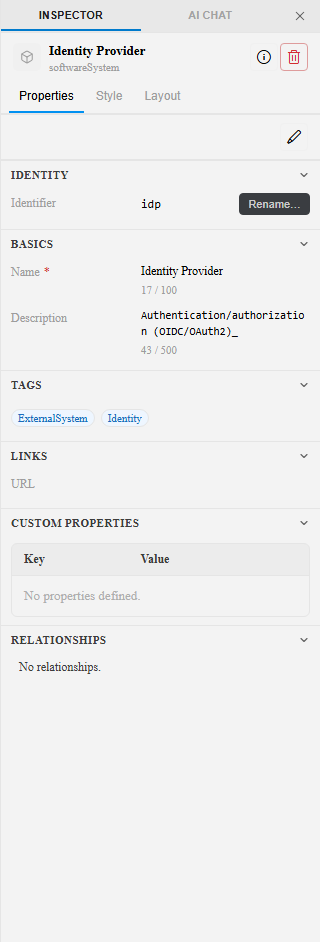
Element or relationship selected
Section titled “Element or relationship selected”The Inspector shows three tabs:
| Tab | Contents |
|---|---|
| Properties | Identity (identifier, rename), Basics (name, description), Tags, Links (URL), Custom Properties (key/value pairs), Relationships |
| Style | Shape, color, and other visual overrides for this element |
| Layout | Position and sizing controls |
Fields like Name and Description commit as you type; tag and property changes take effect immediately. The Inspector header shows the element’s type (e.g. softwareSystem) and an external-link icon to jump to its DSL source.
View selected (nothing on canvas selected)
Section titled “View selected (nothing on canvas selected)”Click empty canvas space to deselect all elements — the Inspector switches to view-level settings across four tabs:
| Tab | Contents |
|---|---|
| Properties | Name, Identifier, Type, Description, Scope/root element, Source (Auto-generated or Defined in DSL) |
| Content | Include/exclude rules for what appears in this view |
| Layout | Auto-layout direction and the layout engine (Default, Graphviz, Dagre, ELK) |
| Appearance | Applied themes and visual settings for the view |
Views tagged Auto-generated in the Source section exist only in the running app; use Add to DSL to make them explicit and durable in your .dsl file. Views tagged Defined in DSL already have a corresponding block in your source and offer Remove from DSL instead.
Editing workflow
Section titled “Editing workflow”- Select an element, relationship, or view on the canvas (or click a view in the Views panel).
- Edit the fields in the Inspector.
- Most edits apply immediately; broader changes (like pasted DSL) need
Ctrl+S— see Canvas & DSL Editor.
Changes made in the Inspector serialize back to the DSL automatically.
See also
Section titled “See also”- Canvas & DSL Editor — How Inspector and canvas edits sync to the DSL
- Views Panel — Understanding auto-generated vs. authored views
- Inspector Editing (reference) — Detailed field reference