
Quick workflow
- Open a
.dslfile - Select a view in the Views panel
- Edit on the canvas or in the DSL editor
- Export or generate documentation
This guide covers the full ArchTect interface — panels, canvas, Inspector, AI chat, and every workflow that ties them together.
Quick workflow
.dsl file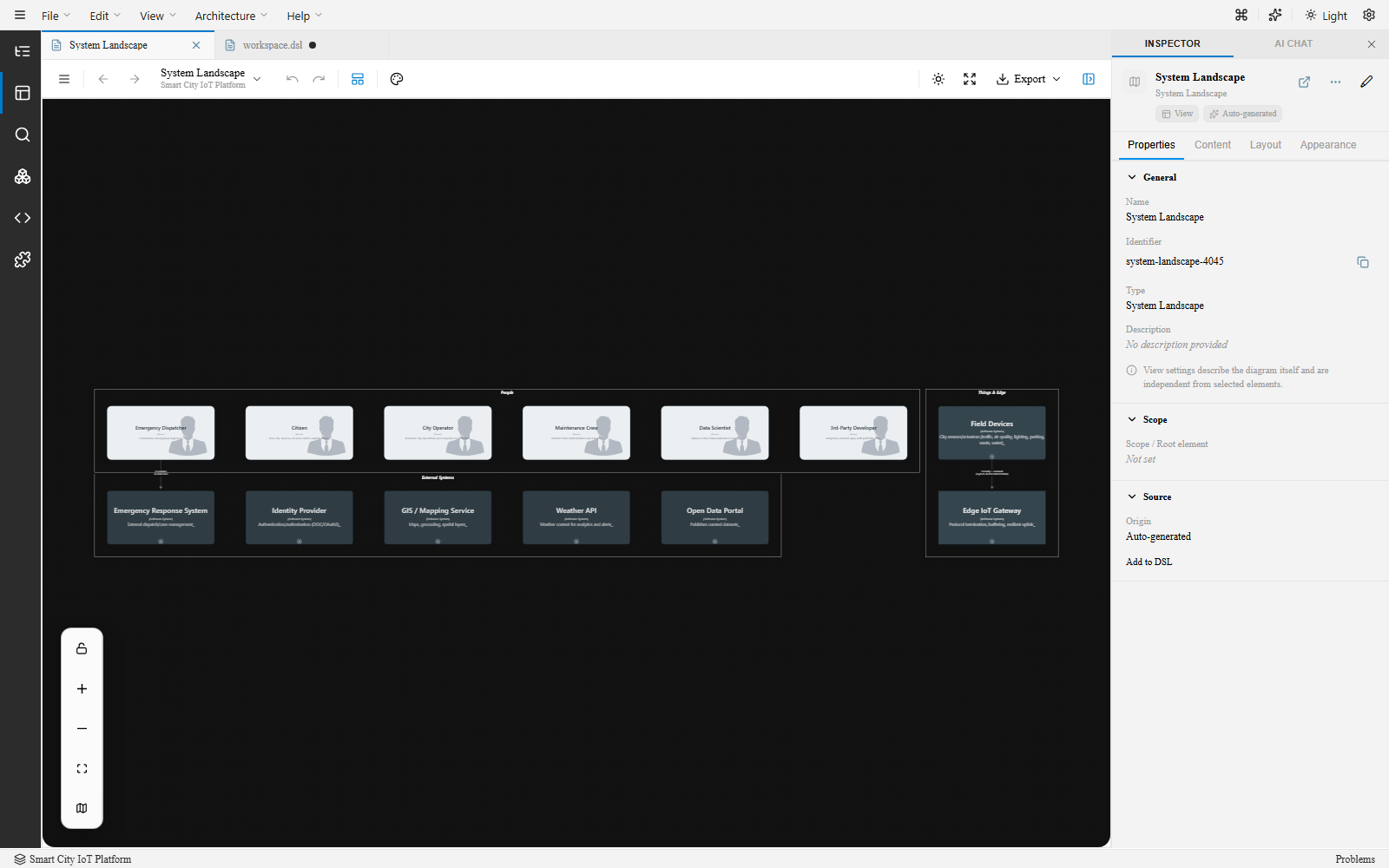
| Area | What it covers |
|---|---|
| Top Bar & Menus | File, Edit, View, Architecture, Help menus and quick actions |
| Left Rail | The icon strip that switches between panels |
| Explorer | Browsing model elements grouped by DSL groups |
| Views Panel | Structure and Views tabs for navigating your workspace |
| Search | Finding elements, relationships, and views |
| Palette | Drag-and-drop element creation and icon libraries |
| Canvas & DSL Editor | The diagram surface and the Monaco-based DSL editor |
| Inspector | Editing properties for the selected element, relationship, or view |
| AI Chat | In-app AI assistant for modeling |
| Status Bar | Workspace name, problems, and cursor position |
| Command Palette | Quick-access commands (VS Code) |
| Keyboard Shortcuts | Full shortcut reference |
| Projects & Workspaces | Creating, opening, and managing projects |
| Problem | Solution |
|---|---|
| Changes not visible after edit | Canvas and DSL sync automatically — press Ctrl+S to apply and flush to disk |
| Working in the wrong view | Check the active view name in the Views panel; DSL-authored views are tagged DSL, auto-generated ones AUTO |
| Inspector changes not applied | Make sure the element is selected — some fields commit on blur, others need Ctrl+S |
| View not showing expected elements | Check include / exclude rules in the view definition |
| Layout looks different after re-opening | Check the layout engine set per view in the Inspector’s Layout tab |