UI Tour
ArchTect’s interface is organized around a few key areas. This page gives you a quick orientation so you know where everything is.
Canvas
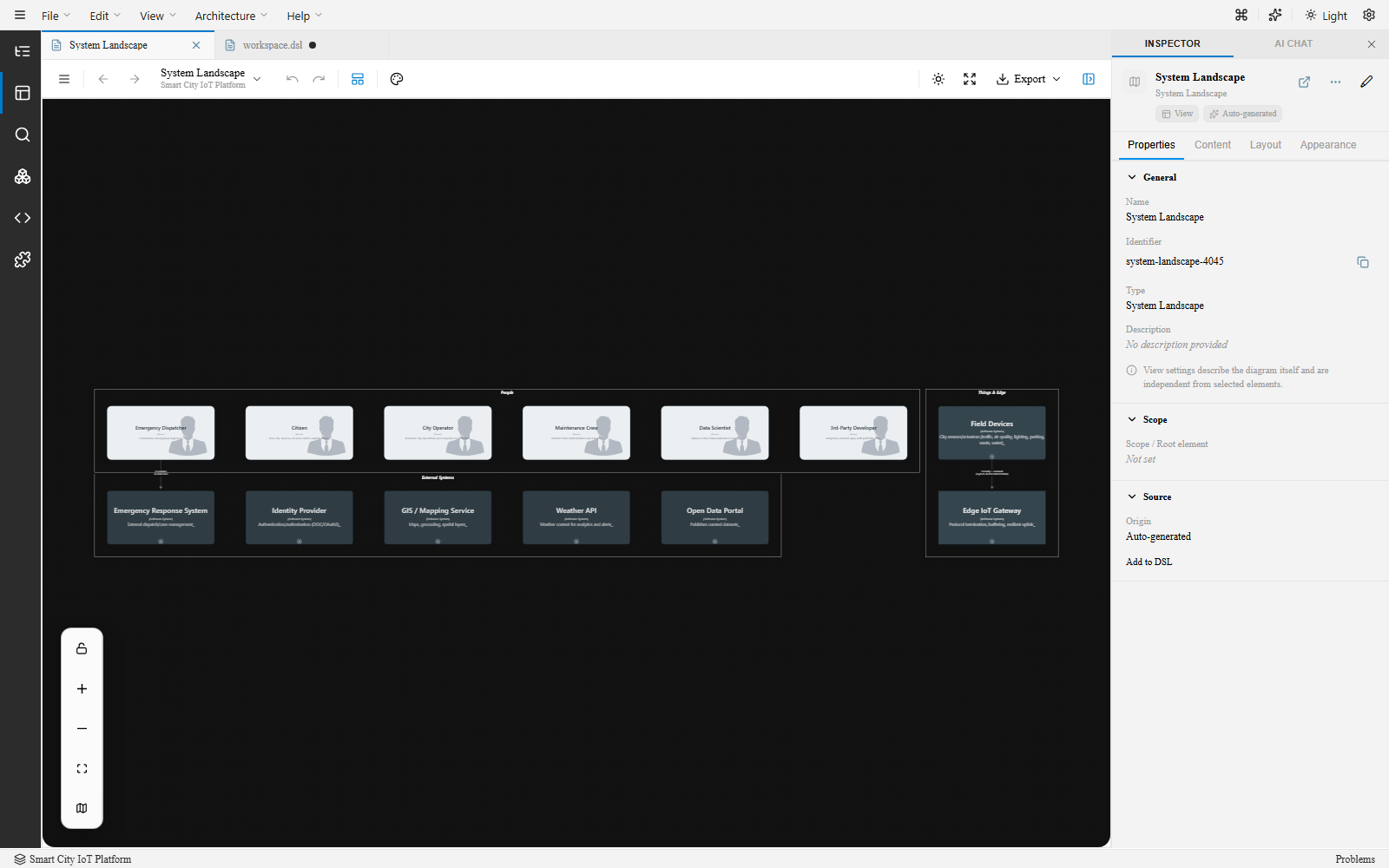
Section titled “Canvas”The canvas is the central area where your architecture diagram is displayed. This is where you interact with your model visually.
- Pan — Hold
Spaceand drag, or use the middle mouse button. - Zoom — Scroll wheel or the zoom controls in the toolbar.
- Select — Click on a node or relationship to select it. Hold
Shiftto multi-select. - Drag — Drag nodes to reposition them on the canvas.
- Fit to screen — Use the toolbar button or
Ctrl+0to fit all elements into the viewport.
Views Panel
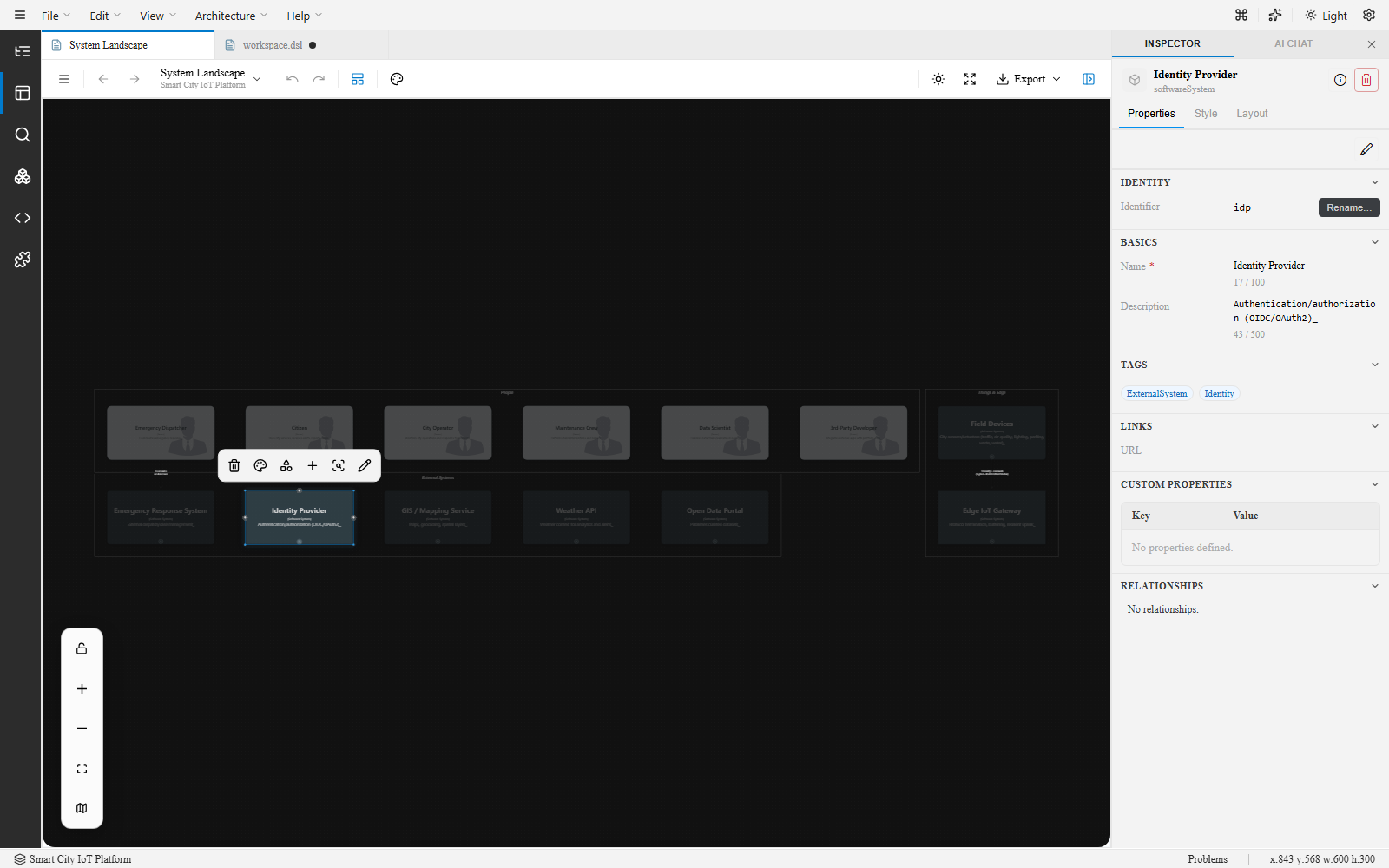
Section titled “Views Panel”The Views panel (left rail) lists all the views defined in your workspace. Click a view to open it on the canvas.
- View types are visually distinguished — System Context, Container, Dynamic, Deployment, and Filtered views each have their own semantics.
- Views you write in the DSL are tagged
DSL; views ArchTect derives automatically are taggedAUTO. - Right-click a view for context actions: open in Diagram Canvas or DSL Editor.
- Create new views using the + button at the top of the panel.
Inspector
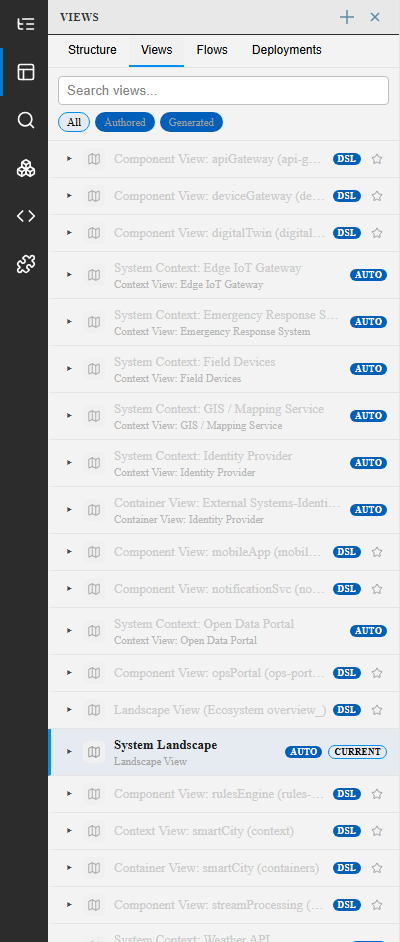
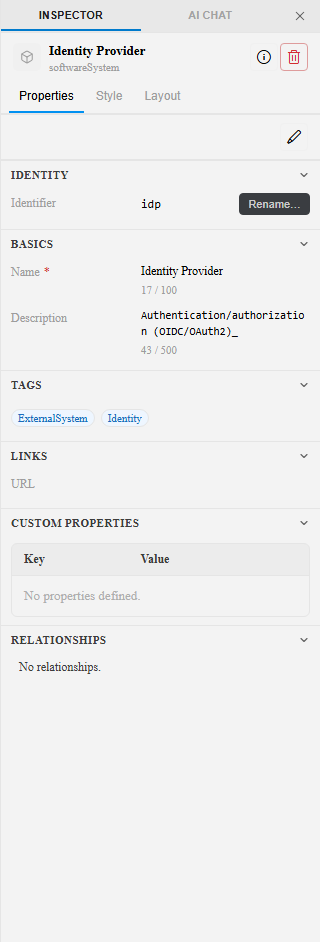
Section titled “Inspector”The Inspector (right panel) shows properties for the currently selected element or relationship. Use it to:
- Edit names, descriptions, and technology labels.
- Modify tags and properties.
- Adjust layout options and view settings (when a view is selected).
- View and edit relationship details including source, destination, and description.
Toolbar
Section titled “Toolbar”The toolbar at the top of the canvas provides quick access to common actions:
- Export — Export the current view as PNG, SVG, or other formats.
- Zoom controls — Zoom in, zoom out, and fit to screen.
- View creation — Create new views.

DSL Editor
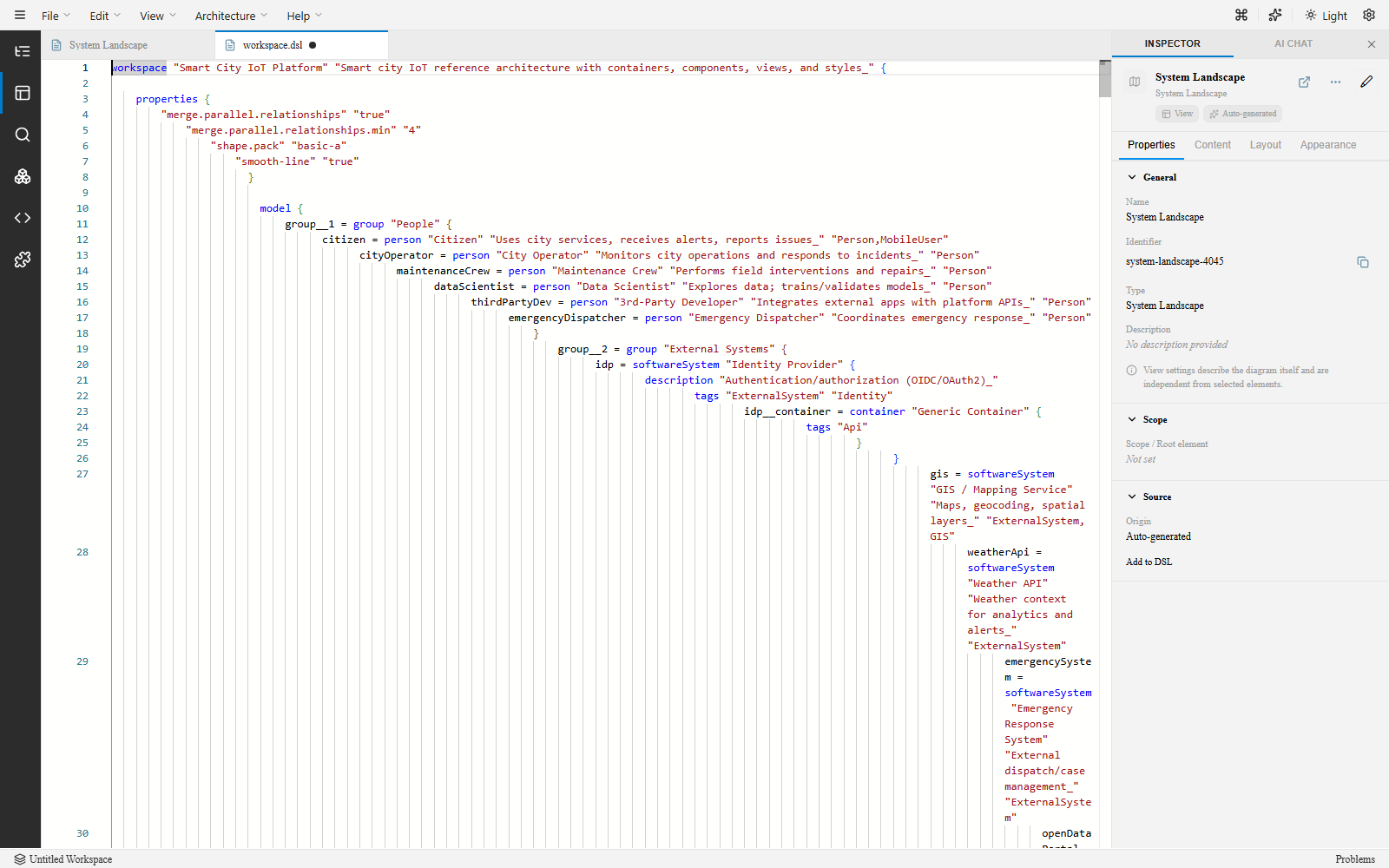
Section titled “DSL Editor”The DSL Editor tab gives you direct access to the Structurizr DSL source. It uses Monaco (the same editor engine as VS Code) with syntax highlighting and diagnostics.
- Changes in the DSL editor update the canvas automatically.
- Changes on the canvas serialize back to the DSL automatically.
- This bidirectional sync is a core feature of ArchTect — you can work in whichever mode is most productive.
Command Palette (VS Code)
Section titled “Command Palette (VS Code)”In the VS Code extension, open the Command Palette (Ctrl+Shift+P / Cmd+Shift+P) and search for ArchTect to see available commands:
ArchTect: New Project— Create a new workspace.ArchTect: Open Generation Center— Open the documentation generation center.ArchTect: Open User Guide— Open the user guide.ArchTect: Show Copilot Diagnostics— Debug AI integration issues.
See VS Code Commands for the full list.
Next steps
Section titled “Next steps”- Your First Project — Create your first workspace.
- Canvas — Deep dive into canvas interactions.
- Inspector — Full inspector reference.